Step-by-step setup
WhatsApp Coexistence Setup: Step-by-Step Connection Guide
Last checked · 8 min read
The short answer
To set up WhatsApp coexistence, update your WhatsApp Business app to version 2.24.17 or higher, launch Meta's Embedded Signup on an official Tech Provider platform, select your existing portfolio, verify with an SMS or voice OTP, and approve Cloud API mirroring. Your handset keeps running while messages stream to your team dashboard. Checked 24 September 2026.
How do you set up WhatsApp Coexistence on an existing business number?
To set up WhatsApp coexistence on an existing phone number, you connect your current WhatsApp Business mobile account to Meta's Cloud API through an approved Tech Provider platform. This links the official API directly to your active phone number without wiping your chat history, forfeiting your SIM card registration, or forcing you to abandon your handset.
For years, moving to the WhatsApp Business API was a disruptive, destructive migration. Businesses were required to delete their account in the mobile app, wiping all local chat backups, and surrender the ability to make or receive standard voice calls on their device. In late 2024, Meta introduced Coexistence to remove this friction entirely:
"Messages sent and received are mirrored between the Cloud API and the WhatsApp Business app." (Meta — Onboard WhatsApp Business App Users)
Below is the complete, verified procedure for preparing your device, completing Meta's Embedded Signup flow, configuring your inbox, and verifying delivery.

- How do you set up WhatsApp Coexistence on an existing business number?
- What are the prerequisites before you start?
- Step-by-Step: Connecting your existing number to WabaCRM
- Step 1: Open the Numbers dashboard in WabaCRM
- Step 2: Select the Coexistence connection pathway
- Step 3: Authenticate with Facebook
- Step 4: Confirm your Business Profile details
- Step 5: Select your existing WhatsApp Business number
- Step 6: Verify via SMS or Voice Call OTP
- Step 7: Finalize authorization and sync
- What changes inside the WhatsApp Business mobile app?
- Troubleshooting common coexistence connection errors
- How WabaCRM powers multi-user collaboration on coexistence numbers
What are the prerequisites before you start?
Before initiating the connection dialog, verify that your hardware and account configuration satisfy Meta's technical baseline:
- Update the WhatsApp Business app: Check Google Play or the Apple App Store to confirm your handset is running WhatsApp Business version 2.24.17 or higher. Personal WhatsApp accounts (
com.whatsapp) cannot connect to coexistence; you must convert the number to WhatsApp Business first. - Primary handset on hand: You must have physical possession of the primary smartphone holding the active SIM card. The setup process sends a 6-digit one-time password (OTP) via SMS or phone call to verify ownership.
- Facebook account with Admin access: You need an active personal Facebook profile with administrator privileges on your company's Meta Business Portfolio (formerly Business Manager). If your company does not have a portfolio, the signup flow allows you to create one inline.
- Valid payment method in Meta Billing Hub: While connecting the number is free, Meta requires a credit or debit card on file inside your Meta Business Account before allowing outbound marketing template broadcasts.
- No active two-step verification lock: If two-step verification is enabled in your mobile app, ensure you know your 6-digit PIN. If forgotten, reset it in Settings > Account > Two-Step Verification prior to starting.
| Requirement | Specification | Why It Matters |
|---|---|---|
| App Version | WhatsApp Business ≥ 2.24.17 | Older builds do not support Cloud API handshake tokens |
| Account Type | WhatsApp Business (not personal) | Personal accounts cannot bind to a WABA |
| Verification Method | SMS or Voice Call | Proves physical SIM custody to Meta security systems |
| Portfolio Role | Business Portfolio Admin | Standard employee roles cannot grant API partner permissions |
| Throughput Ceiling | 20 messages per second | Hard limit enforced by Meta across all coexistence numbers |
| Registration Step | Skipped | Meta recognizes the number as already live on GSM |
Step-by-Step: Connecting your existing number to WabaCRM
Connecting an active WhatsApp Business number takes under five minutes through Meta's native Embedded Signup modal.
Step 1: Open the Numbers dashboard in WabaCRM
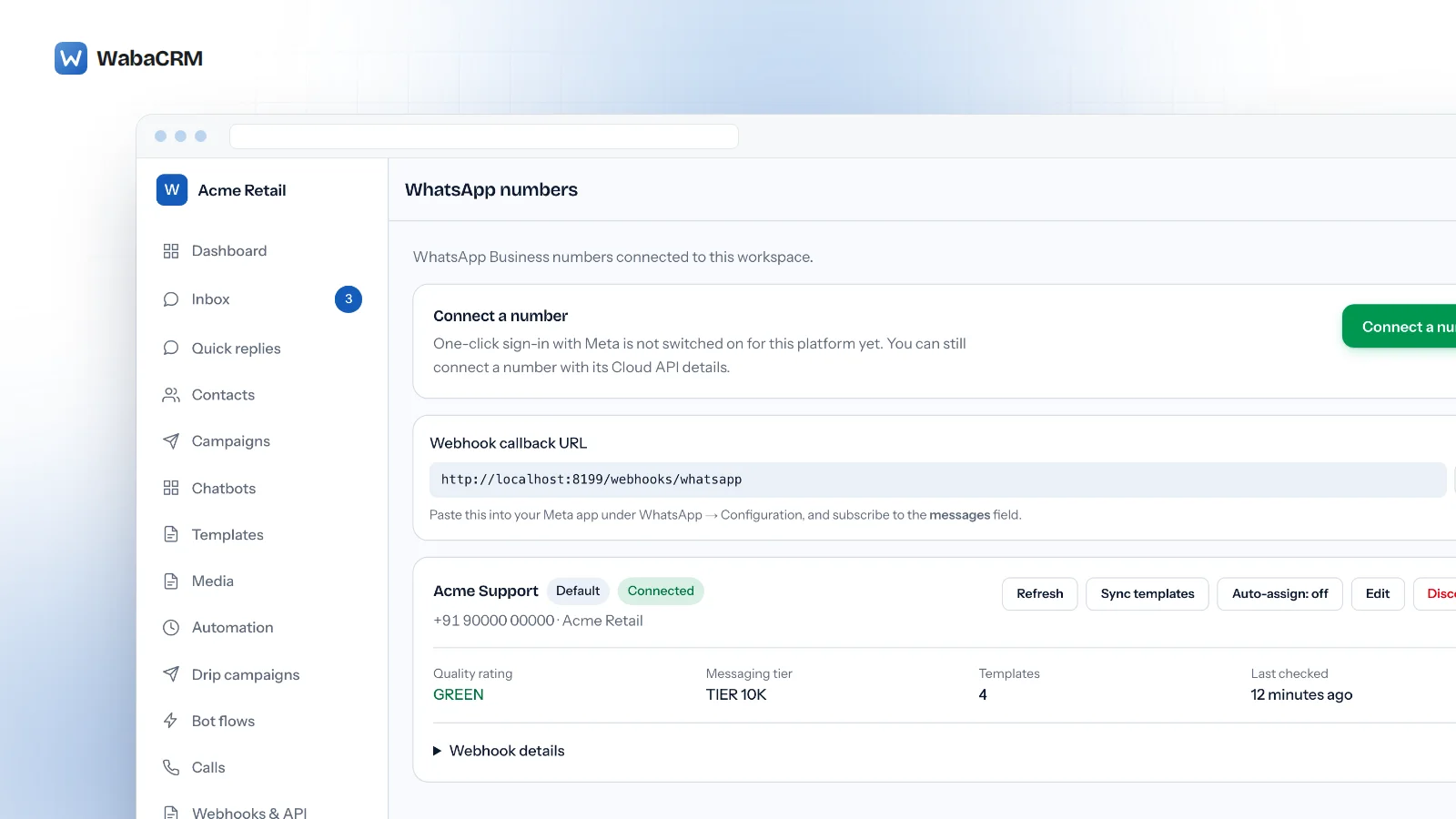
Log into your WabaCRM workspace. In the left navigation menu, click WhatsApp Numbers (or navigate to /app/numbers). Click the primary green action button: Connect a number.

Step 2: Select the Coexistence connection pathway
WabaCRM displays three distinct connection routes:
- Embedded Signup (Standard): For new numbers or numbers transferring entirely to Cloud API.
- Coexistence (Keep using phone): For numbers you intend to keep answering on your physical handset.
- Manual Credentials: For numbers already provisioned inside an existing developer app.
Select Coexistence. WabaCRM passes the required configuration parameters to Meta's JavaScript SDK:
{"version":"v4","featureType":"whatsapp_business_app_onboarding"}.
Step 3: Authenticate with Facebook
A secure Meta dialog window will open (facebook.com/dialog/oauth).
- Log in using the Facebook account that administers your company's business portfolio.
- Review the permissions requested by WabaCRM:
whatsapp_business_managementandwhatsapp_business_messaging. - Click Get Started and select your verified Business Portfolio from the list (or create a new portfolio).
Step 4: Confirm your Business Profile details
Meta will display your legal company name, website URL, and business category. Confirm that these details match your official documents. This information will appear on your public WhatsApp Business profile.
Step 5: Select your existing WhatsApp Business number
Select the radio button for your existing phone number currently operating on your phone. Meta will recognize that this number is currently registered to a physical device and will display:
"This number is registered to the WhatsApp Business app. Messages will be mirrored between your app and this platform."
Step 6: Verify via SMS or Voice Call OTP
Meta will prompt you to verify ownership of the phone number.
- Select Text Message (SMS) or Phone Call.
- Click Send Code.
- Retrieve the 6-digit numerical code delivered to your handset.
- Enter the code into the Meta dialog and click Verify.
Step 7: Finalize authorization and sync
Once verified, click Finish. Meta will automatically bind your WhatsApp Business Account (WABA) to WabaCRM's Tech Provider infrastructure. The modal will close, and your number will appear on your WabaCRM dashboard with an active Connected badge.
What changes inside the WhatsApp Business mobile app?
Once coexistence is active, your mobile application continues operating normally for day-to-day conversation, but Meta enforces specific guardrails to maintain data integrity between the device and the cloud.
Meta's developer documentation details four specific features that change in the phone app:
- Broadcast Lists become read-only: The legacy broadcast list feature (which caps lists at 256 contacts who have saved your number) is disabled in the phone app. You can view past broadcast records, but new broadcast campaigns must be executed through your WabaCRM dashboard using Meta-approved templates.
- Disappearing Messages disabled: Disappearing messages are switched off for all one-to-one conversations to prevent data inconsistencies between the phone's SQLite cache and the cloud database.
- View-Once and Live Location disabled: View-once images/videos and live location streaming cannot be initiated from the mobile app while connected to the API.
- Companion devices unlinked once: Any desktop browsers or tablets previously connected via WhatsApp Web Linked Devices will be logged out upon initial coexistence connection. You may immediately re-link them up to the standard 4-device limit.
All standard communication—including one-to-one messaging, voice calls, video calls, group chats, catalogs, and labels—continues functioning on your phone without change.
Troubleshooting common coexistence connection errors
Below are the most frequent error conditions encountered during Embedded Signup coexistence setup, along with verified solutions.
1. Error 2655111: Partner app lacks required Advanced Access
- Cause: The partner application has not been granted Advanced Access by Meta for
whatsapp_business_messagingandwhatsapp_business_management. - Resolution: Ensure you are using an officially approved Meta Tech Provider. WabaCRM completed Meta App Review on 30 July 2026 and holds permanent Advanced Access for coexistence onboarding.
2. Error 133005: Two-step verification PIN required
- Cause: The phone number has two-step verification enabled on the mobile app, but the PIN was not provided during the web dialog.
- Resolution: Never retry blindly—Meta blocks phone numbers for 72 hours after 10 failed registration attempts. Open your mobile app, go to Settings > Account > Two-Step Verification, temporarily disable the PIN, complete the WabaCRM web connection, and re-enable the PIN immediately afterward.
3. Missing historic chats in the web dashboard
- Cause: Meta's chat history backfill is subject to a strict 24-hour window from the moment of connection.
- Resolution: Under Meta's coexistence architecture, past messages are mirrored from the handset only during initial onboarding. Messages sent or received prior to connecting do not import automatically into the web inbox unless synchronized during the initial 24-hour onboarding window.
How WabaCRM powers multi-user collaboration on coexistence numbers
Once your existing number is connected via coexistence, you unlock full enterprise team management without purchasing extra hardware:
- Unlimited team members: Invite your entire customer support and sales team to the shared inbox. Learn more about team configuration in our guide to WhatsApp Business multiple users.
- Zero seat fees: WabaCRM does not charge per agent. Every plan, including our lifetime free plan for 1,000 contacts, includes unlimited agent accounts.
- Automated least-busy routing: Inbound messages automatically route to available agents, preventing customer inquiries from sitting unassigned.
- Direct Meta billing: As a Tech Provider, WabaCRM adds 0% markup on Meta's per-message fees. You pay Meta directly at official rates. Check our detailed guide on what Meta charges for API messaging.
Every Meta quotation on this page was read from Meta's own documentation on 24 September 2026. Meta changes that documentation without notice; the linked pages are authoritative and this one is not.