Assign WhatsApp Chats to Your Team, With Auto-Assign
The short answer
Every active member whose role can open the inbox and reply appears in a chat's assign list, unless their departments limit them to other numbers. Auto-assign is stricter: it only gives new chats to members ticked "Available for new chats", and members added from the Team screen start unticked, so someone must tick it. Checked 19 September 2026.
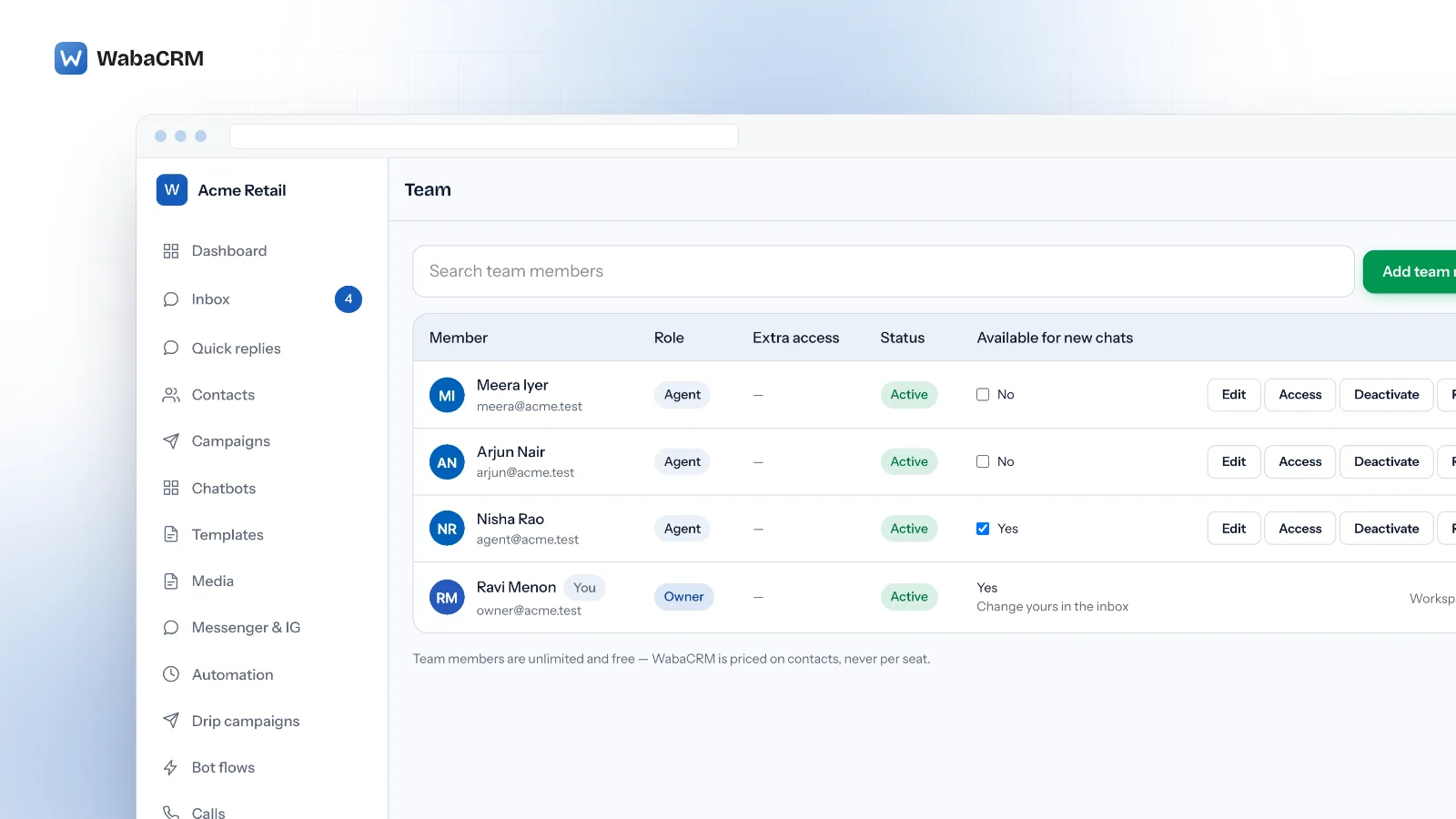
Why are my agents not showing in the assign list?
Everyone whose role lets them open the inbox and reply appears in a chat's assign list, so a missing agent is limited to other numbers by a department, deactivated, or holding a role without those two permissions. Auto-assign is a separate check: it only hands new chats to members ticked Available for new chats, and members you add from the Team screen start unticked.
Those are three controls in three places, and each fails quietly. The role decides who can be given a chat at all. The department decides which numbers' chats they can be given. The availability tick decides who auto-assign may pick. Assigning by hand ignores availability; auto-assign respects all three, then picks the least busy person left.
Until 13 September 2026, WabaCRM had a bug that produced exactly these symptoms: members added from the Team screen were left out of the assign list, never saw the availability tick and were never picked by auto-assign, so the owner was the only name anyone could choose. That is fixed. If your team still looks that way, one of the settings below is the reason, and this page takes them in order: add people with a role that can reply, check their departments, mark them available, then assign by hand or switch on auto-assign.
If you are still deciding whether a team should share one number at all, what a WhatsApp shared inbox is and who needs one covers that first.
- Why are my agents not showing in the assign list?
- How do I add a team member who can answer chats?
- Which roles can take chats, assign them, and see everyone's?
- How do I mark someone available for new chats?
- How do I hand a chat to a colleague myself?
- How do I switch on auto-assign for a number?
- How does auto-assign decide who gets the next chat?
- What does an agent see once chats are assigned?
- How do departments limit who can be assigned?
- What happens to a member's chats when you deactivate or remove them?
- Why is auto-assign still not giving anyone chats?
How do I add a team member who can answer chats?
Owners and Admins can add people. A Manager can open the Team screen but has no button to add anyone, and an Agent cannot open it at all.
- Open Team (
/app/team) and click Add team member. - In the dialog titled Add a team member, fill in Name and Email. The email only has to be unused inside your own workspace. An address that belonged to someone you removed is not taken: adding it again brings that person back, as described under deactivating and removing members below.
- Choose a Role: Admin, Manager or Agent (Agent is preselected). The hint reads "Admin runs the workspace. Manager handles contacts, campaigns and the team's work. Agent answers chats. Fine-tune any of them with Access."
- Set a Password ("At least 10 characters."). No invitation email is sent: "They sign in at this workspace with the password you set here. Ask them to change it once they are in." Pass the address and password on yourself.
- Leave Departments unticked unless you mean to limit this person to certain numbers. With only one number connected, and no Facebook Page or Instagram account, there is nothing to tick yet, and the dialog explains that departments are your WhatsApp numbers.
- Click Add member. The dialog closes, a note reading "Team member added." appears for a few seconds, and the new member appears at the top of the table.
The new row shows Active under Status and No under Available for new chats. That second value is deliberate: a colleague who has never signed in should not start collecting chats the moment auto-assign is on.
Adding people never changes the bill. The note under the table reads "Team members are unlimited and free — WabaCRM is priced on contacts, never per seat.", and the contact-based plans are on the pricing page.
Which roles can take chats, assign them, and see everyone's?
To be given a chat, a member needs two permissions: Open the chat inbox and Reply to conversations. All four built-in roles have both. They differ in what comes after:
| Role | Can be assigned | Can assign others | Sees colleagues' chats |
|---|---|---|---|
| Owner | Yes | Yes | Yes |
| Admin | Yes | Yes | Yes |
| Manager | Yes | Yes | Yes |
| Agent | Yes | No | No |
"Can assign others" is the permission Assign conversations to agents; "Sees colleagues' chats" is View other agents' conversations. Two more matter here, and by default only the Owner and Admins hold them: Invite and manage team members, needed to add people and set someone else's availability, and Edit or disconnect numbers, needed to switch auto-assign on.
Any permission can be given to one person without changing their role. On Team, click Access on their row, tick what they need and click Save access. Whatever the role already grants is greyed out and marked "from role".
A row reading Cannot take chats in the Available for new chats column means that member lacks one of the two inbox permissions. Hovering over it explains: "This role cannot open and reply to the inbox, so auto-assign never picks them." Every built-in role includes both, so this should be rare. When you see it, check the Role column, then either click Edit and give them a built-in role, or click Access and tick Open the chat inbox and Reply to conversations. A deactivated member shows a dash in that column instead.
How do I mark someone available for new chats?
Each member controls their own tick, and an Owner or Admin can set it for them.
- In the inbox. The member opens Inbox and ticks Available for new chats, just under the All, Unread, Mine, Unassigned and Saved tabs. Anyone whose role can reply sees it. Unticking it stops auto-assign handing them new chats; it does not hand back the ones they hold.
- On the Team screen. An Owner or Admin ticks the checkbox in the Available for new chats column on someone else's row. The label beside it switches between Yes and No straight away.
Some rows cannot be changed there: your own shows Yes or No with "Change yours in the inbox" beneath it, the owner's is plain text to everyone else, and deactivated members and anyone who cannot take chats have no box. A Manager sees the whole column as plain text.
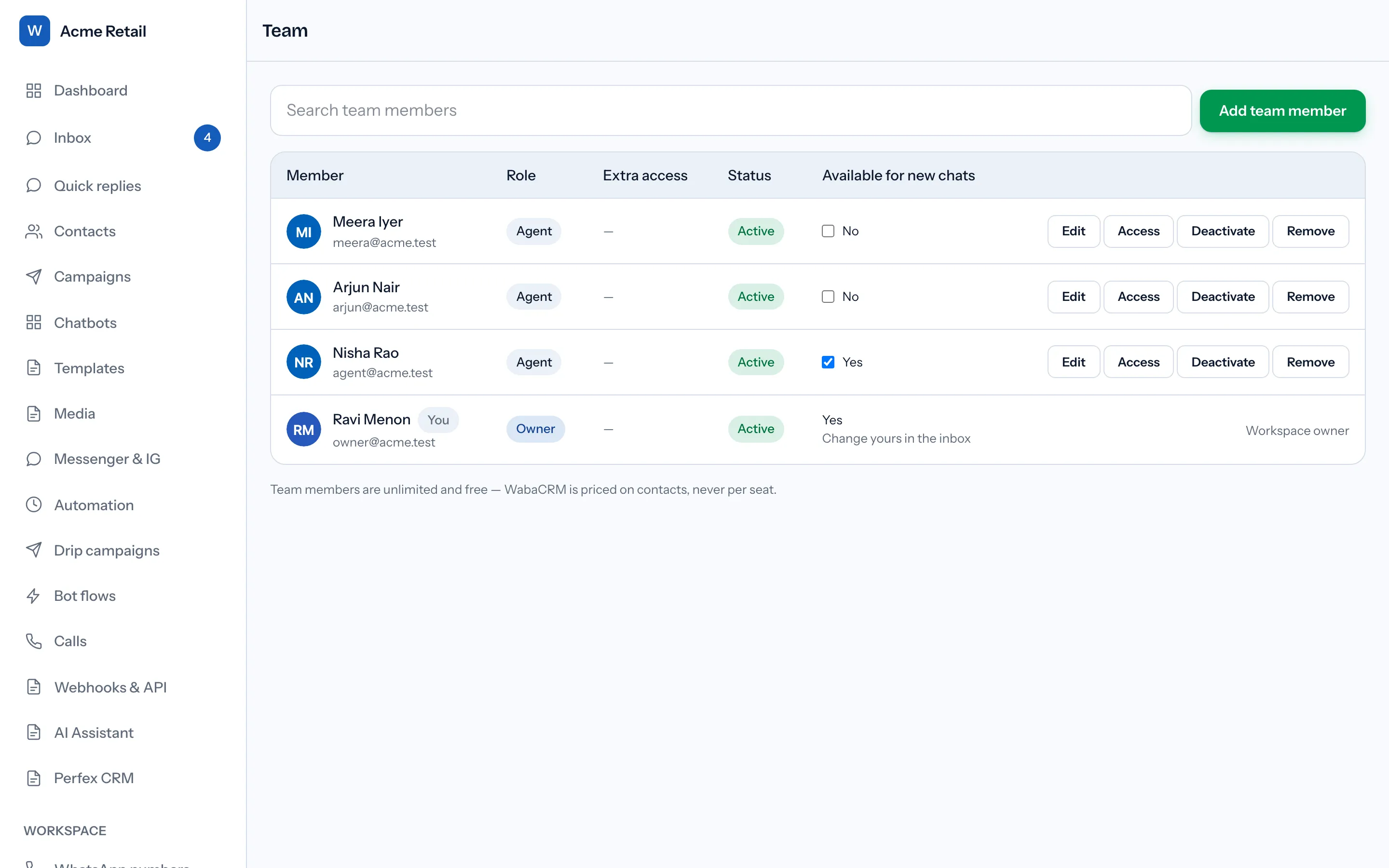
That Team column is the only way to make someone available if they work only in the Android app, which has no availability switch. An agent who never opens WabaCRM in a browser stays at No, outside auto-assign, until an Owner or Admin ticks it for them.
Two starting states catch people out. The owner of a new workspace starts available; everyone added from the Team screen starts not available. And when the 13 September fix shipped, every existing member other than an owner was set to not available, because the fix would otherwise have started routing chats to people who had never signed in.
How do I hand a chat to a colleague myself?
- Open the chat in Inbox.
- Find the assignment dropdown in the row of controls across the chat's header, just before Pin and Remind me. It shows Unassigned or the current holder's name.
- Pick a name. Choosing Unassigned puts the chat back in the shared queue.
The dropdown appears only for people with Assign conversations to agents (Owner, Admin and Manager by default), so an Agent sees none. It lists everyone who can take chats on this chat's number, available or not: availability only steers auto-assign, and you can always hand a chat to someone who has unticked the box. In the Android app, open the chat, tap the options button (⋯) at the top right and choose Assign to….

A refused choice shows "That team member cannot take conversations on this number." under the dropdown. It deliberately does not say which rule failed. The Android app's list is not narrowed to the chat's number, so that is the message you will meet there after picking someone whose departments exclude it.
If the current holder could no longer be picked, for instance because they were later limited to other numbers, the dropdown still shows their name followed by "(inactive)", so the chat does not read as unassigned when it is not.
How do I switch on auto-assign for a number?
Auto-assign is set per number, and every number starts with it off.
- Open WhatsApp numbers (
/app/numbers). - On the number's card, click Auto-assign: off. Its tooltip reads "Route each new conversation to the least-busy available agent". Only people with Edit or disconnect numbers (Owners and Admins) see the button.
- The button now reads Auto-assign: on, and a line appears on the card under the number's name and phone number. Clicking the button again switches routing off, and the line goes away.
- Read that line: it counts who can actually receive a chat on this number right now, from the same list auto-assign picks from.
With someone to pick, it reads like "2 of 4 members available for new chats on this number." The first figure is who auto-assign can pick; the second is everyone who could take chats on this number if they ticked the box, the owner included.
With nobody to pick, the line turns amber and starts Auto-assign has nobody to give chats to. The usual version goes on, for example, "3 members can take chats on this number, but none is marked available, so new chats stay unassigned", and the fix is the availability tick. The rarer version says "No team member can take conversations on this number", which points at roles and departments instead.
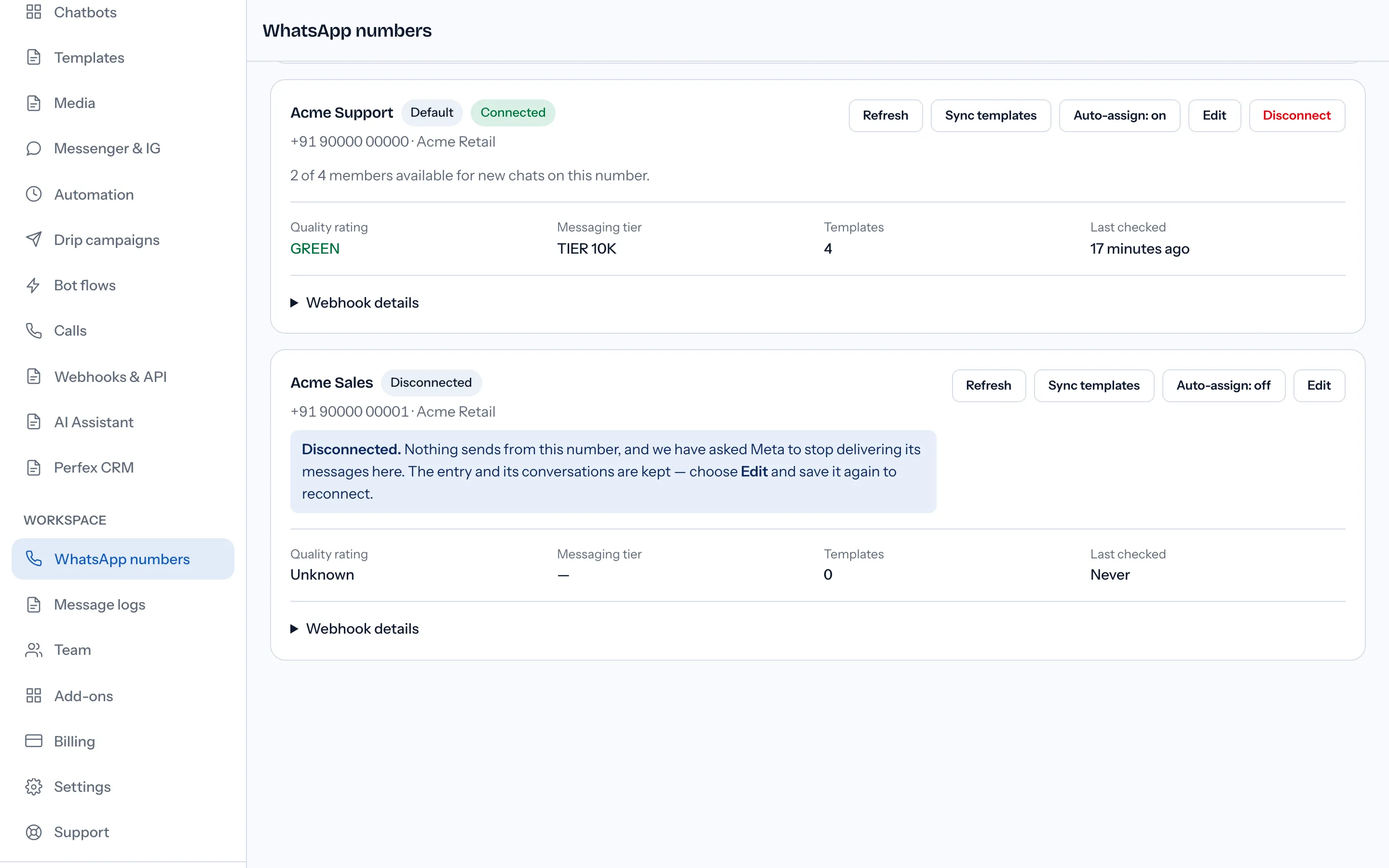
The button is not offered on a number connected as Sending only: its incoming messages go to another platform, so nothing arrives here to route.
How does auto-assign decide who gets the next chat?
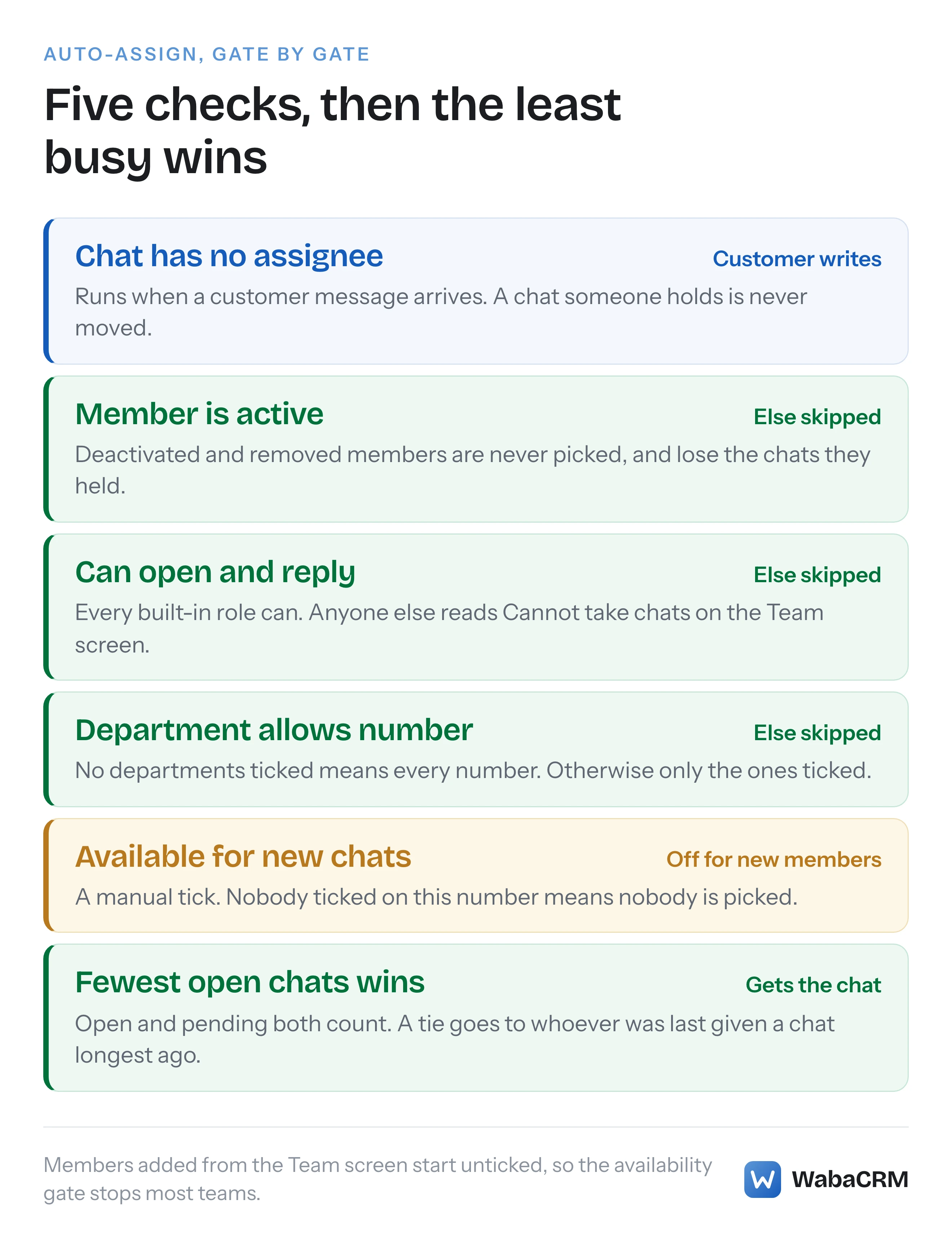
It runs when a customer's message arrives on a chat nobody holds, on a number with auto-assign on. A notice WhatsApp adds to the thread itself, such as a customer changing their number, does not count: nobody can answer it, so it leaves the chat unassigned. It takes every member who passes the gates in the diagram above and gives the chat to whoever holds the fewest chats that are not resolved. Open and pending chats count; resolved ones do not.
A tie goes to the member whose newest open chat was assigned longest ago. If that still ties, for example two members with nothing open, whoever joined the workspace first wins. It is least-busy routing, not a strict rotation.
Five consequences surprise people:
- An assigned chat is never moved. Not when its holder unticks availability, and not when the customer reopens a resolved chat by writing again: it comes back to the same person.
- Switching it on does not share out the backlog. Chats already unassigned stay put until their customer next writes, then route like new ones.
- Nothing waits in a queue. If nobody is available when a message arrives, the chat stays unassigned and is considered again only when the next message arrives on it.
- Your own replies never trigger it. Replying does not claim a chat. On a coexistence number, a reply the owner types in the WhatsApp Business app on their phone appears in the thread but neither assigns the chat nor starts routing; what else differs on a coexistence number is covered separately.
- Availability never changes by itself. WabaCRM does not detect who is online, so a member who goes home with the box ticked keeps receiving chats.
What does an agent see once chats are assigned?
The inbox has five tabs: All, Unread, Mine (assigned to you), Unassigned and Saved (pinned, or carrying a reminder). Each tab loads more chats as you scroll, and the search box finds any of them by the customer's name, email, company or number.
An Agent, or anyone without View other agents' conversations, sees their own chats plus unassigned ones on every tab, never a colleague's. That is almost always what "my agent can only see some chats" means. To widen it, go to Team, click Access on their row, tick View other agents' conversations and click Save access.
Unread chats sit at the top of every tab, then pinned chats, then the rest by latest message. A chat nobody has opened yet is not pushed past the 60-chat limit unless more than 60 are unread at once. Opening a chat marks it read whether or not anyone replied.
If you are comparing this with chat assignment inside the WhatsApp Business app, that is a different mechanism with its own rules; multi-agent on the WhatsApp Business app covers it.
How do departments limit who can be assigned?
Departments are your WhatsApp numbers. Once the workspace has more than one connected account, the Add and Edit dialogs show a checkbox per account under Departments: "Tick departments to limit this member to those numbers' chats. Tick none and they see everything." A disconnected number, a Facebook Page and an Instagram account each count, and each gets its own box.
Ticking one or more numbers does three things:
- The member sees only those numbers' chats, even with View other agents' conversations.
- They appear in the assignment dropdown only on chats that came in on those numbers.
- Auto-assign on any other number skips them.
Ticking nothing means no limit, which is how every member starts. So a support agent missing from the dropdown on a sales chat is usually a department doing its job. To give each number its own team, set departments first, then switch on auto-assign per number; each card then counts only the people allowed on it.
What happens to a member's chats when you deactivate or remove them?
On Team, Deactivate asks, for example: "Deactivate Meera Iyer? They are signed out everywhere, and their conversations return to Unassigned. Reactivating does not give them back." Remove asks: "Remove Meera Iyer from this workspace? Their conversations return to Unassigned."
Both hand back every chat the member held, resolved ones included, so a customer who writes again does not land with someone who has left. With auto-assign on, those chats are shared out as each customer next writes; otherwise they wait under Unassigned.
A deactivated member stays in the table as Deactivated, with a dash under Available for new chats and a Reactivate button, and no assignment list offers them. Reactivating does not return their old chats, but it leaves their availability tick as it was, so someone who was ticked starts receiving new chats again at once. The owner cannot be deactivated or removed, and nobody can deactivate or remove themselves.
A removed member disappears from the table, but they can come back. Click Add team member and enter the same email address; the note then reads "Team member added back." None of their old access returns with them: their previous sign-ins and extra permissions are cleared, and they start again with the role, departments and password you set in the dialog, and at No under Available for new chats, exactly like a new member. Their old chats are not returned either. Trying instead to Edit another member onto that address is refused with "That address belongs to a member who was removed. Use Invite with that address to add them back."
Why is auto-assign still not giving anyone chats?
Work down this table: each row is a symptom, the setting that usually causes it, and where to change it.
| Symptom | Usual cause | Fix |
|---|---|---|
| Only you in the assign list | Others are limited to other numbers, deactivated, or show Cannot take chats | Team: Departments under Edit, the Status column, Access |
| "Auto-assign has nobody to give chats to." | Nobody is marked available, or nobody can take chats on the number | Tick Available for new chats; if the line says no member can take chats, check roles and departments on Team |
| An agent sees only some chats | Their role lacks View other agents' conversations | Team, Access, tick it, Save access |
| A member is missing on one number | Their departments exclude that number | Edit: tick that number, or untick all |
| A member shows Cannot take chats | They lack Open the chat inbox or Reply to conversations | Edit to give a role, or Access to tick both |
| Auto-assign on, chats still unassigned | They were waiting before it went on, or nobody was available | They route on the customer's next message |
If every row checks out and a chat still will not route, open a ticket from Support with the number's name and the time the customer's message arrived.
Every screen label and message quoted on this page was read from WabaCRM itself on 19 September 2026. The product changes; if a label on your screen differs from one here, your screen is right and this page is out of date.
Questions people also ask
Does WabaCRM auto-assign use round robin?
Why can't my agent see the Available for new chats checkbox?
Does auto-assign stop sending chats when an agent logs out?
Can an Agent assign a chat to themselves?
Do I pay extra for each agent I add to WabaCRM?
- agents not showing in assign list
- auto assign not working
- available for new chats
- assign whatsapp chat to agent
- whatsapp team inbox


