How to Pay a WabaCRM Add-on or Plan Invoice
The short answer
You pay a WabaCRM invoice online from Billing: press Pay, then finish on the secure payment page. Customers have no bank transfer option. A purchase switches on once the payment is confirmed. If you have never paid for a contact plan, the step-back button on Billing cancels an unwanted plan invoice. Correct as of 31 October 2026.
How do I pay for a WabaCRM add-on or plan invoice?
Open Billing, press Pay on the invoice's row, check the dialog, and press its green button to finish on the secure payment page. That is the only way to pay from inside WabaCRM. There is no bank transfer option on the Billing screen, and nothing on the customer's side can mark an invoice paid.
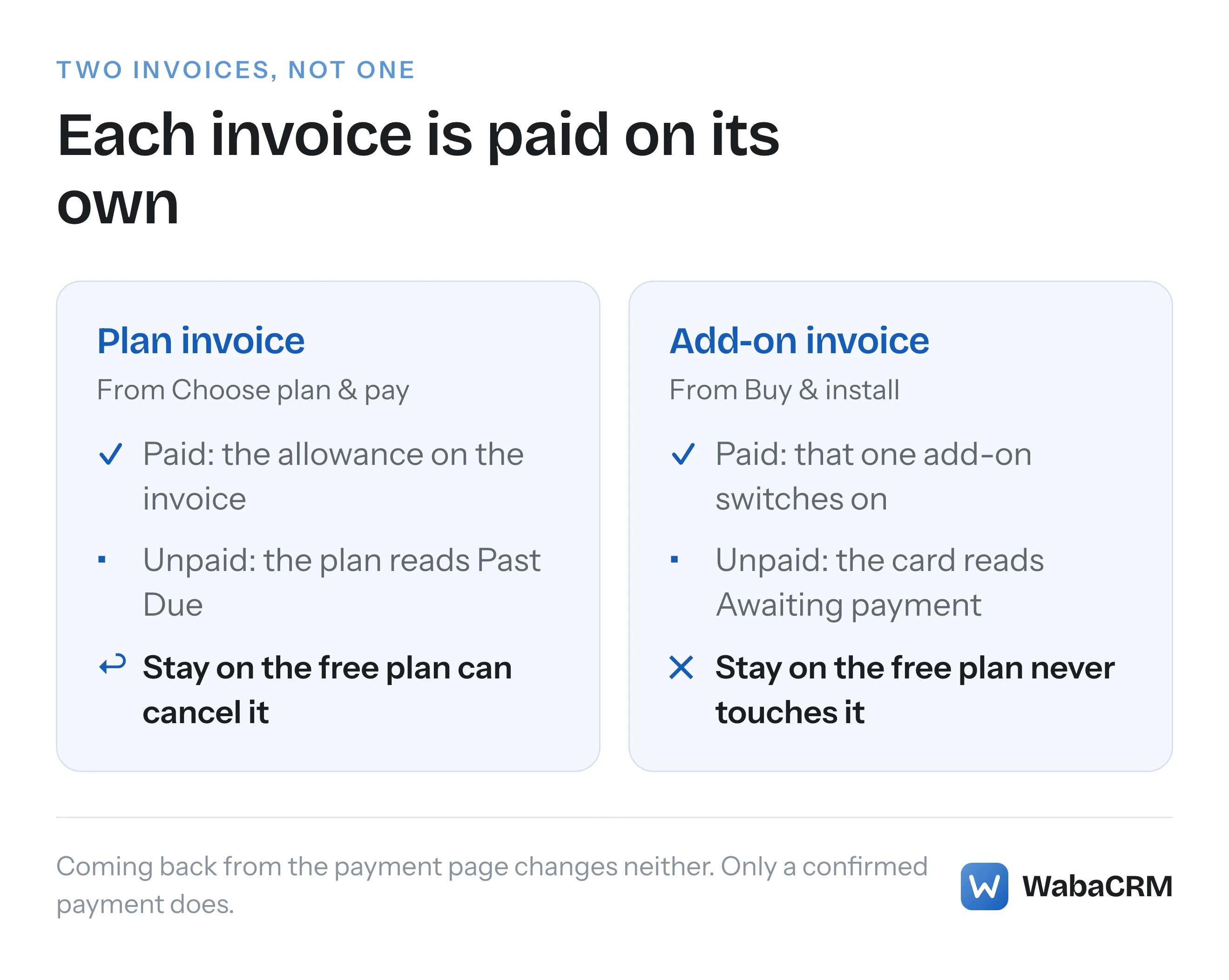
Three kinds of purchase raise an invoice: Buy & install on a paid add-on, Choose plan & pay on Billing, and a credit pack's price button on the AI Assistant screen. Each invoice is paid on its own, and paying one switches on only what that invoice is for. A workspace that pressed Buy & install and Choose plan & pay while comparing prices therefore holds two separate invoices. If it has never paid for a plan, it can pay the add-on and cancel the plan without either touching the other.
The part people usually get wrong is the moment anything switches on. Coming back from the payment page changes nothing. Nothing you do in the browser turns an invoice Paid. It turns Paid when the payment provider's signed confirmation reaches WabaCRM, or when WabaCRM records a payment by hand. After an online payment that normally follows within moments. The order is what matters.
- How do I pay for a WabaCRM add-on or plan invoice?
- What happens when you click Buy & install?
- Why can an Admin raise an add-on invoice but not pay it?
- What does the pay dialog show before you pay?
- What if the invoice still reads Unpaid, or the payment is refused?
- Why is there no bank transfer option any more?
- What do Unpaid, Overdue, Cancelled and Awaiting confirmation mean?
- How do you cancel a plan invoice you never meant to raise?
- Why does Billing still say Past Due after support cancelled the invoice?
- Does a monthly add-on renew by itself?
- Does a WabaCRM invoice include Meta's message charges?
What happens when you click Buy & install?
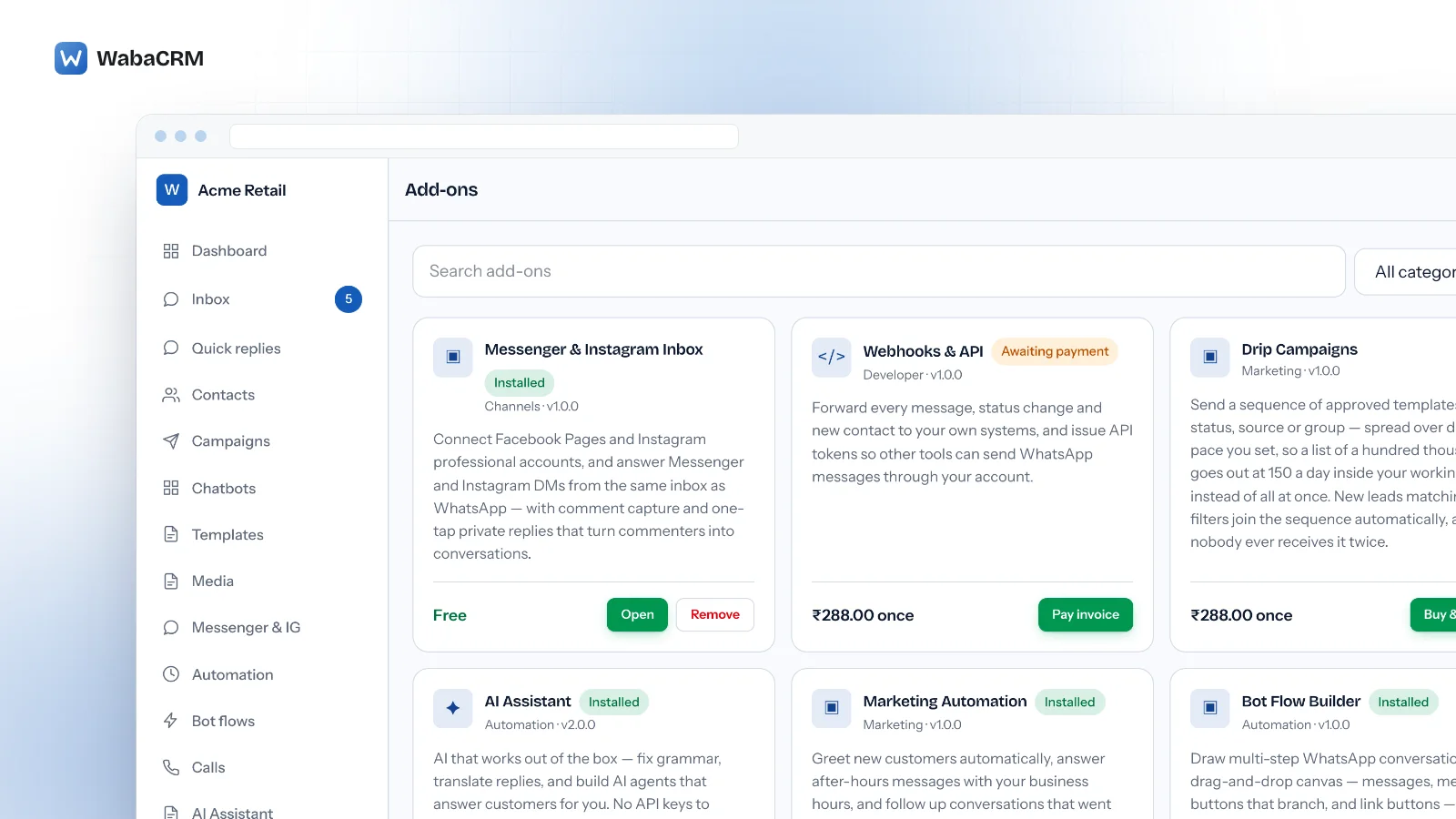
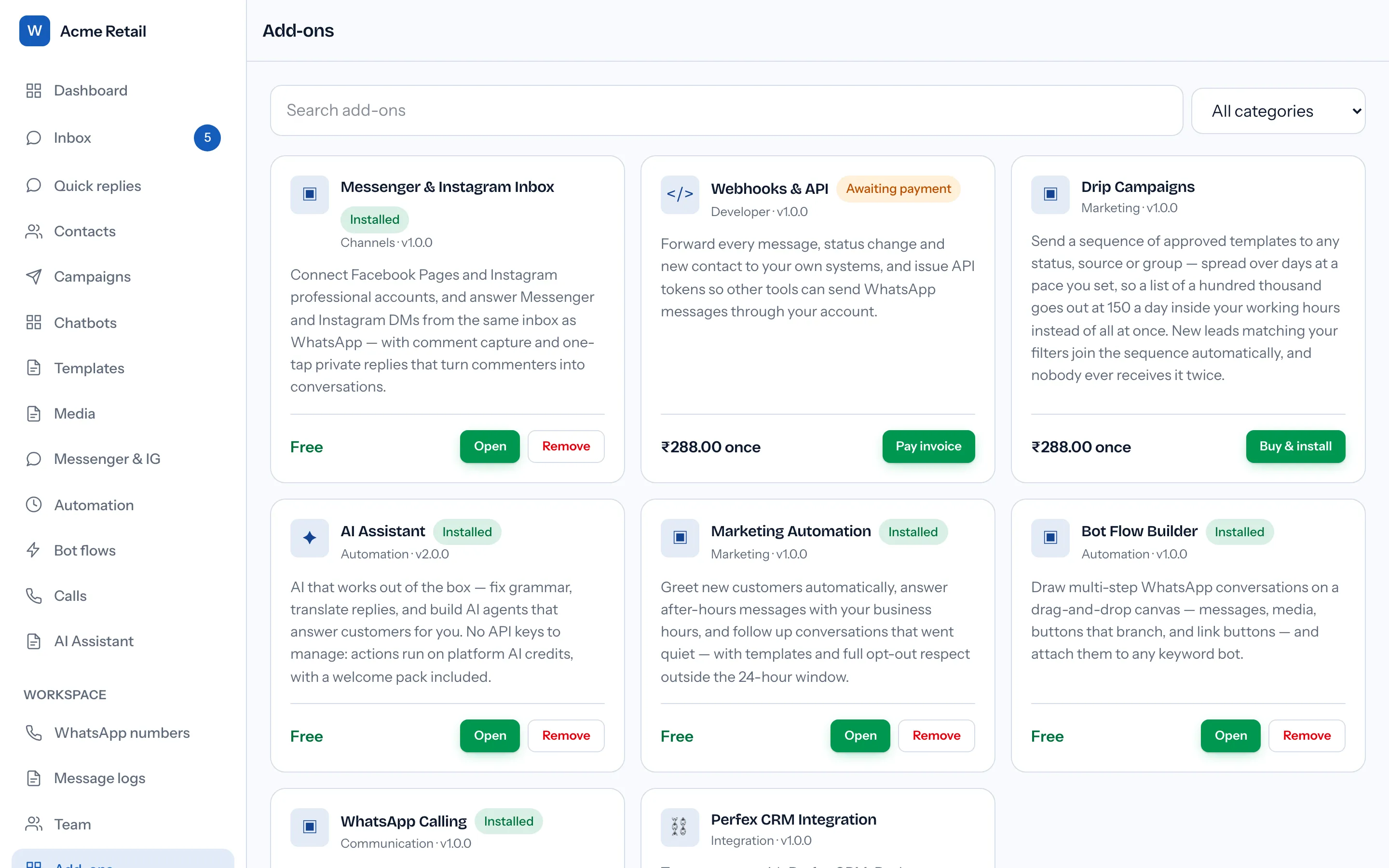
Open Add-ons. The bottom of every card shows its price. A free add-on reads Free and offers Install, which switches it on at once. A paid add-on shows the price on its card, ending in "once" or "/mo", and offers Buy & install.
- Press Buy & install on the add-on you want, for example Webhooks & API.
- WabaCRM raises one invoice for it and takes you straight to Billing, with the pay dialog already open for that invoice.
- If you close the dialog without paying, nothing is lost. The add-on's card now carries an amber Awaiting payment badge and a green Pay invoice button, which reopens the dialog for exactly that invoice.
Pressing Buy & install a second time does not raise a second invoice. While the first one is still waiting, WabaCRM reuses it, so a second click in another tab cannot leave you owing twice for one add-on.
If an add-on depends on another one, its card shows "Requires:" and the add-on's name. Pressing Buy & install before that add-on is installed shows "… needs the … module installed first." at the top of the page. Install the named add-on, then come back.
Why can an Admin raise an add-on invoice but not pay it?
Installing an add-on and paying for it are guarded by two different permissions. Buy & install needs the permission labelled Install and remove add-on modules. Paying needs the one labelled Change plan and payment method, and among the built-in roles only the Owner holds it. The Admin role has every permission except that one.
So when an Admin presses Buy & install, the invoice is raised and the page says:
Invoice INV-… is raised for this add-on. Ask the workspace
owner to pay it from Billing — the add-on switches on the
moment it is paid.
The card then reads "Invoice INV-… awaits the owner" in place of a button. An Admin who opens a payment link directly lands on Billing with "Only the workspace owner can pay invoices. Ask them to open Billing — the invoice is waiting there." A member who can open Add-ons but lacks Install and remove add-on modules sees "Ask the workspace owner or an admin to install add-ons." on each add-on that is neither installed nor awaiting payment. Members on the built-in Agent role hold neither View workspace settings nor Install and remove add-on modules, so Add-ons does not appear in their sidebar. And anyone without Change plan and payment method, Admins included, sees "Only the workspace owner can change the plan." on Billing where Choose plan & pay would be, and no Pay button on any invoice row.
None of these is a fault. The owner signs in, opens Billing, and presses Pay on the waiting row.
What does the pay dialog show before you pay?
The dialog opens over Billing, headed Pay and the amount in rupees. Under the heading is a summary of three lines: Invoice, with the number in the form INV-…; For, saying what is being bought; and Amount.
For an add-on, the For line is the add-on's name followed by "module (one-time)" or "module (monthly)". For a plan it is the allowance and the rate, in the form "10,000 contacts — ₹96.00 per 1,000". For a credit pack it is the number of credits, in the form "… AI credits". Read it before paying. The Invoices table on Billing has no column saying what each invoice is for, so the For line is the quickest way to tell one invoice from another. Opening the dialog commits you to nothing, and Cancel closes it.
To pay, press the green button beside Cancel. It takes you to the secure payment page, where you pay with one of the payment methods shown to you there. Two other messages can appear in the dialog instead:
Online payment is not set up yet, so this invoice cannot
be paid from here.
There is no pay button in that case. Press Close and email support@wabacrm.com with the invoice number, as the dialog says.
The payment page could not be opened just now. Try again
in a minute, or email support@wabacrm.com with the invoice
number.
The payment page could not be started. Wait a minute and press the button once more. If it happens again, email support.
What if the invoice still reads Unpaid, or the payment is refused?
When you finish on the secure payment page, it sends you back to Billing. Billing shows no confirmation message when you arrive, because it reads nothing from the address you came back on. It shows the invoice's current status, and after an online payment that status changes when the payment provider's signed confirmation reaches WabaCRM. Arriving back a moment before the confirmation does is normal, so reload Billing after a minute.
Once the invoice reads Paid, a purchased add-on's card reads Installed and offers Open and Remove. A paid plan invoice raises the workspace's contact allowance to the figure written on that invoice, and a paid credit pack adds its credits to the workspace's balance.
Two rules if it does not happen:
- If the invoice still reads Unpaid after a few minutes, do not pay it again. Open Support and reply on your ticket, or press New ticket and choose the category Billing and invoices. Give the invoice number. A second payment is not needed, and would only have to be refunded.
- If the payment page refuses your payment, do not keep retrying. Write to support with the invoice number and the exact words the page showed. Which methods are on offer is decided on the payment page itself, so this guide makes no promise that any particular card or method will be accepted.
Why is there no bank transfer option any more?
It is no longer offered to customers. For most of the time it was offered, the transfer option named no bank account to send the money to, so a customer who chose it had to ask where to pay. They then typed a transaction reference, and the invoice waited for someone at WabaCRM to check it, while the purchase stayed switched off.
Online payment removes that wait. The payment provider tells WabaCRM directly, on a signed message, that the money arrived, and the add-on or plan switches on without anyone confirming it by hand. Nothing your browser sends marks an invoice paid, which is also why coming back from the payment page proves nothing on its own.
If you declared a transfer before the change, that invoice reads Awaiting confirmation on Billing, and the workspace owner also sees "Ref" and the reference that was given. On Add-ons its card reads Payment being confirmed and "We are confirming your payment". WabaCRM either confirms the transfer by hand, which turns the invoice Paid and switches the purchase on, or sends it back to Unpaid, after which you pay it online like any other invoice.
What do Unpaid, Overdue, Cancelled and Awaiting confirmation mean?
These are the labels in the Status column of the Invoices table on Billing.
| Status | What it means | What to do |
|---|---|---|
| Unpaid | Raised, not yet paid | Press Pay |
| Overdue | Unpaid seven days after issue | Press Pay; it is still payable |
| Paid | Payment confirmed | Nothing; it is switched on |
| Cancelled | Void; nothing is owed | Nothing, or buy again |
| Awaiting confirmation | A transfer declared under the old option | Wait for WabaCRM to confirm or return it |
On Billing, Overdue changes the label and nothing else, and the workspace keeps working as before. The same Pay button pays the same invoice, for the same amount. You may also get an email asking whether to pay the invoice or have it cancelled.
Cancelled means the invoice is void and nothing is owed on it. It comes from one of two places: the step-back button on Billing (next section), or WabaCRM support cancelling it at your request. An add-on whose invoice was cancelled loses its Awaiting payment badge and offers Buy & install again, and pressing it raises a fresh invoice.
How do you cancel a plan invoice you never meant to raise?
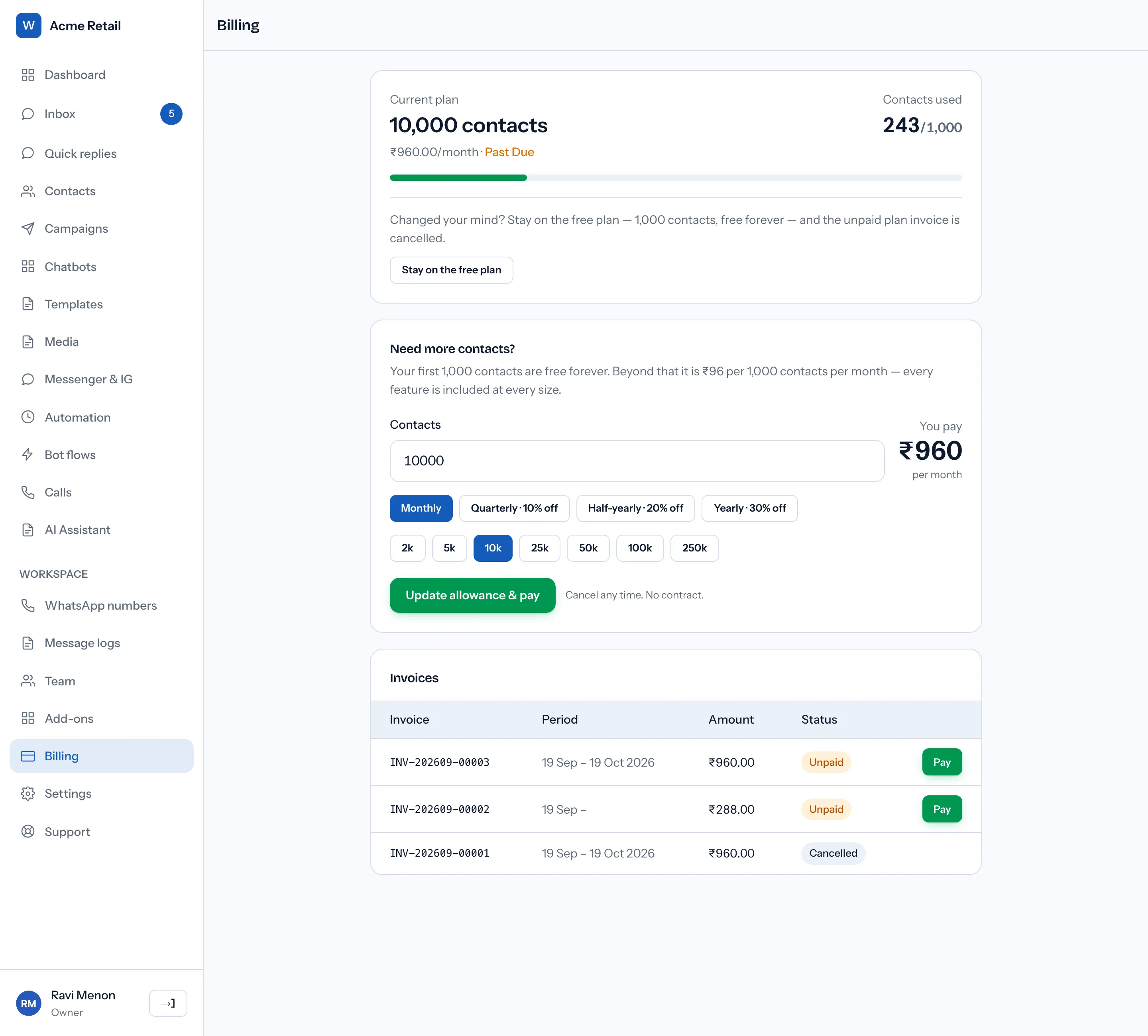
Only one button raises a plan invoice: Choose plan & pay, which reads Update allowance & pay once a plan has been chosen. Typing in the Contacts box, pressing the 2k to 250k presets and switching between Monthly, Quarterly, Half-yearly and Yearly only change the price shown under "You pay". Looking at prices costs nothing.
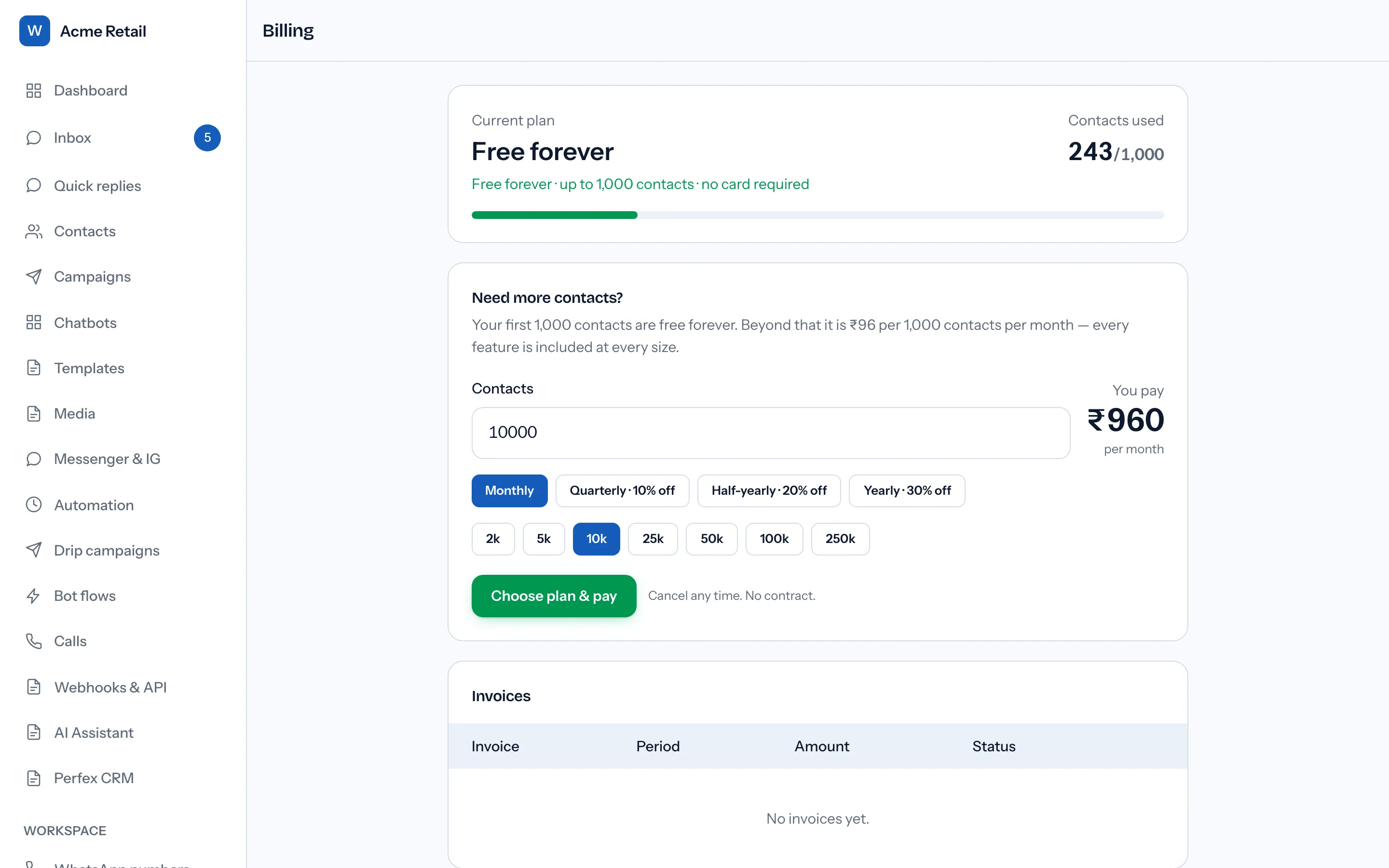
Pressing that button does three things at once. It raises the invoice, opens the pay dialog, and sets the plan's status to Past Due, shown beside the price under Current plan. Closing the dialog leaves all three in place. Pressing Update allowance & pay again raises a further plan invoice beside the first one rather than replacing it.
The way back is on the same screen. While a plan is waiting to be paid, the Current plan card carries a band that cancels it. What the band says depends on the plan your workspace held before you chose one:
| Your workspace | The band reads | The button |
|---|---|---|
| Paid the one-time Lifetime Starter | "Changed your mind? Keep your current plan (Lifetime Starter) and the unpaid plan invoice is cancelled." | Keep my current plan |
| Created before 27 October 2026, on the free plan | "Changed your mind? Stay on the free plan — 1,000 contacts, free forever — and the unpaid plan invoice is cancelled." | Stay on the free plan |
A workspace that has not unlocked sending yet sees the first wording, with its plan named as Not unlocked yet.
- Press the button.
- Confirm. The question ends "The unpaid plan invoice is cancelled."
- The page names the plan you are back on and adds "The unpaid invoice INV-… is cancelled." Current plan reads what it read before you chose, and the plan invoice's row reads Cancelled, with Kept the current plan beneath it.
Three limits apply. The band is shown only to members holding Change plan and payment method (among the built-in roles, only the Owner), only while no plan has ever been paid for, and never while the workspace is suspended, so a customer who has paid for a plan before and then presses Update allowance & pay needs support to cancel the new invoice. It cancels unpaid plan invoices only, never an add-on or credit pack invoice and never one reading Awaiting confirmation. And it is refused while the workspace holds more than the 1,000 contacts it covers without a paid contact plan, with "Without a paid contact plan this workspace covers 1,000 contacts, and it holds N. Delete some first." WabaCRM never deletes contacts to make a downgrade fit.
That last limit can arrive unexpectedly. WabaCRM does not cap contacts created by inbound messages, because losing a real customer's message is worse than a small overage, so a workspace can pass 1,000 contacts without anyone choosing to.
Why does Billing still say Past Due after support cancelled the invoice?
Because cancelling an invoice and changing a plan are separate actions, and WabaCRM support can do either. If support cancelled only the invoice, the plan's status is left as it was, so Current plan still reads Past Due. If you have never paid for a contact plan, the band from the previous section is still showing.
Press its button. With the invoice already cancelled there is nothing further to cancel, so it simply returns the workspace to the plan it held, and the notice names that plan with no invoice number after it. The contact limit from the previous section still applies.
If support moved the workspace back to its earlier plan instead, the invoice and the plan changed together, and Current plan already reads that plan. If you have paid for a plan before, the band is not offered at all; reply on your support ticket and say which plan you want to keep.
Does a monthly add-on renew by itself?
No. A paid add-on's price ends in one of two words, and they mean different things:
- once pays for the add-on for good. It stays installed until you remove it.
- /mo pays for one month, counted from the moment the payment is confirmed, not from the day the invoice was raised.
When a monthly add-on's month runs out, it stops working, its card loses the Installed badge and offers Buy & install again, and pressing that raises a new invoice for the next month. As of 19 September 2026 WabaCRM does not raise that renewal invoice by itself, so the add-on stays off until someone buys it again. Note the date the month ends in your own calendar.
One more thing about Remove. On a paid add-on, Remove deletes the installation along with its settings, and the payment does not carry over. Installing it again later is a new purchase with a new invoice, one-time add-ons included. Remove only what you mean to stop paying for.
Does a WabaCRM invoice include Meta's message charges?
No. A WabaCRM invoice covers only WabaCRM: a paid contact allowance, meaning any plan larger than the free 1,000 contacts, an add-on, or a pack of AI credits. Meta's charges for WhatsApp messages are billed by Meta, to the payment method on your own WhatsApp Business Account. Meta's pricing page states:
"Effective July 1, 2025, Meta charges on a per-message basis" (Meta — WhatsApp Business Platform pricing)
and, on the same page:
"Billing and billing-related actions are handled through the Meta Business Suite." (Meta — WhatsApp Business Platform pricing)
Both were read on 19 September 2026.
That split is structural. WabaCRM is a Meta-verified Tech Provider, and a Tech Provider cannot resell Meta's message fees, so it adds 0% markup to them and Meta bills you directly. Our piece on why a Tech Provider cannot resell Meta's message fees explains the tiers. Paying a WabaCRM invoice therefore does nothing for a WhatsApp error about your payment method: error 131042 is about the payment method on your own Meta account, fixed in Meta's own settings. Reading what Meta actually charged you shows where to check Meta's bill, and WabaCRM's own prices are on the pricing page.
Every Meta quotation on this page was read from Meta's own documentation on 19 September 2026. Meta changes that documentation without notice; the linked pages are authoritative and this one is not.
Questions people also ask
Can I pay a WabaCRM invoice by bank transfer?
Why does my Admin see Buy & install but no Pay button?
Will paying the add-on invoice also settle my unpaid plan invoice?
What happens if I remove a paid add-on and install it again later?
Is Meta's per-message charge part of a WabaCRM invoice?
- wabacrm invoice
- pay add-on invoice
- wabacrm billing
- bank transfer
- past due plan
- cancel plan invoice


